Using SieCommerce Product Teaser
Place our widget on your product page to inform the user about a leasing option.
This shows the lowest monthly amount the item can be leased for. Selecting the 'See more leasing options' will show a range of other terms.
Prerequisites
- Merchant profile set up - contact us to get this
- API client credentials in order to obtain a valid auth token
Steps to integrate
- Get a widget token (server side)
- Embed the teaser widget JS into your page and add an empty HTML
<div>element to your page where you would like the teaser to appear
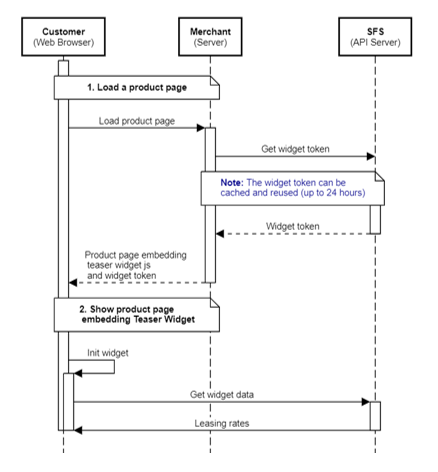
1. Get a widget token
Get a widget token for initialising the teaser widget. This needs to be done on server side, using an auth token that you have previously generated:
curl --location --request GET 'https://<API_DOMAIN>/widget/v1/token' \
--header 'Authorization: Bearer <AUTH_TOKEN>'
The returned widget token is valid for 24 hours so can be cached on your system.
Refer to API reference for further details.
2. Embed the teaser widget JavaScript on your page
Load the JS widget on your page, by adding the following:
<script src="https://siecommerce.sfs.siemens.com/static/widget/widget-bundle.js"></script>
Initialize the widget by adding the following (after the JS above has been added):
<script id="sfs-teaser-script">
  window.onload = function () {
    window.sieCommerce.teaser({
        "targetDiv": "_sfs_checkout",
        "currency": "EUR",
        "country": "UK",
        "locale": "en",
        "token": "{the-widget-token}",
        "product": {
            "iacCode": "123456",
            "unitPrice": 39900,
            "productName": "A product name"
        }
  )};
</script>
Add a HTML <div> element to your page:
<div id="_sfs_checkout"></div>
NOTE: You can specify your own element ID. If left blank, the widget will look for the default ID
_sfs_checkout.
Refer to JavaScript reference for further details.